
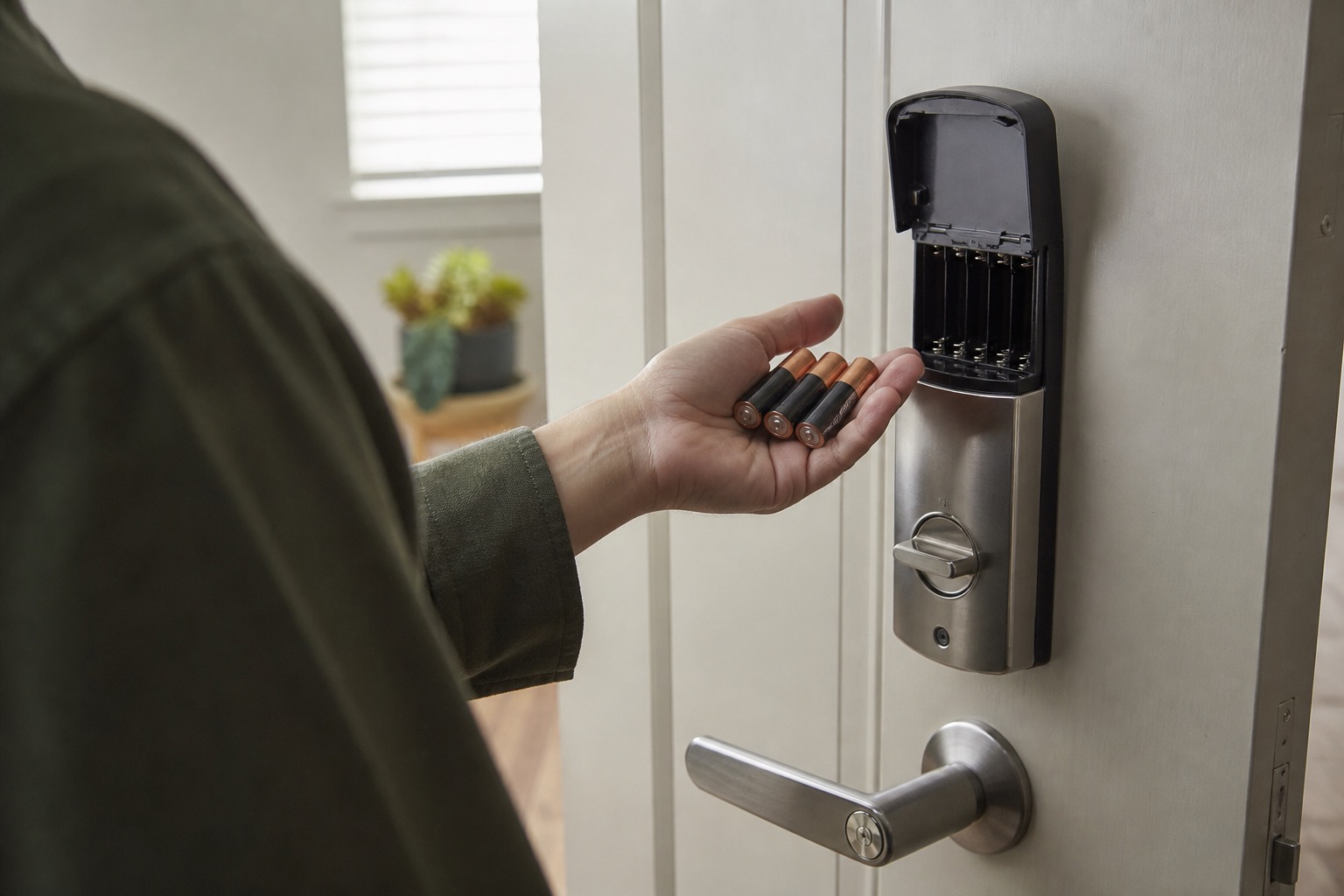
If a smart or electronic lock stops working, start with four things: battery power, keypad behavior, whether the bolt moves freely with the door open, and whether the app or wireless connection still works.
PMI James River rentals may have Schlage, Kwikset, Yale, or other supplied electronic locks. Battery access and controls vary, so identify the visible brand and model before applying model-specific instructions.
If the Keypad Is Blank, Dim, or Unresponsive
Check for a low-battery warning, dim keypad, warning beeps, or an app battery alert. Replacing the normal user-accessible batteries is an appropriate first step when the installed model makes the battery compartment clear.
Schlage Encode
Current Schlage Encode BE489WB, BE499WB, and FE789WB models use four AA alkaline batteries. Remove the interior battery cover, slide the battery holder upward, replace all four batteries, then reinstall the holder and cover.
Use Schlage's current Encode battery instructions for the supported models.
Kwikset Halo and Aura
Kwikset battery access varies by model. Halo Select uses a release tab and removable battery pack. Halo Touchscreen, Halo Keypad, Halo Touch, and Aura commonly use a battery pack that slides upward from the interior lock.
If the keypad flashes or beeps but will not operate the lock, compare the indicator pattern with Kwikset's keypad-response guidance.
Yale Assure and Nest x Yale
Yale's battery covers vary by generation. Some Assure, Assure Pro SL, and Nest x Yale locks use a small release pin or paper clip. First-generation Assure deadbolts use a #2 Phillips battery-cover screw. Assure Lock 2 models commonly use a cover that slides upward.
Use Yale's current battery guide for the exact model.
If the Code Is Rejected
Enter the code carefully once and note the lights, beeps, spoken message, or app error.
If a code that previously worked is now rejected and the next step requires a master, programming, or administrator credential that you do not have, report the problem. Do not erase existing users or factory-reset a supplied lock just to regain access.
If the Code Is Accepted but the Bolt Struggles
If you are already inside, open the door and operate the lock once with the door open. Then compare that with normal operation when the door is closed.
If the bolt moves normally with the door open but binds only when closed, the door or strike alignment may be involved. Kwikset uses this same open-door versus closed-door comparison in its current smart-lock troubleshooting.
Do not continue into strike bending, lock rehanding, trim removal, or internal mounting adjustments. If the door itself rubs or will not close properly, use our Door Problems guide.
If the Mechanical Lock Works but the App Does Not
Check that your phone has internet service and Bluetooth enabled when the lock uses Bluetooth. If the lock uses the home's Wi-Fi, verify that Wi-Fi is working on another device.
If you already have authorized app access, check the lock's normal device status. A router replacement, network-name change, or Wi-Fi password change can disconnect a previously working lock.
If the supplied lock appears assigned to another account, requires owner or administrator access you do not have, or tells you to factory-reset the lock before adding it, submit the setup problem instead of erasing the existing configuration.
If the Smart Lock Still Does Not Work
Submit a request through the PMI James River resident portal. Include the brand and model, battery result, keypad lights or sounds, what happens after the code is entered, whether a mechanical key works, whether operation changes with the door open, and the app's exact status or error.
For a conventional key or deadbolt problem, use Keys, Deadbolts & Lockouts. For the rest of this family, return to Doors, Windows & Garage Troubleshooting.
Published: September 2, 2026