
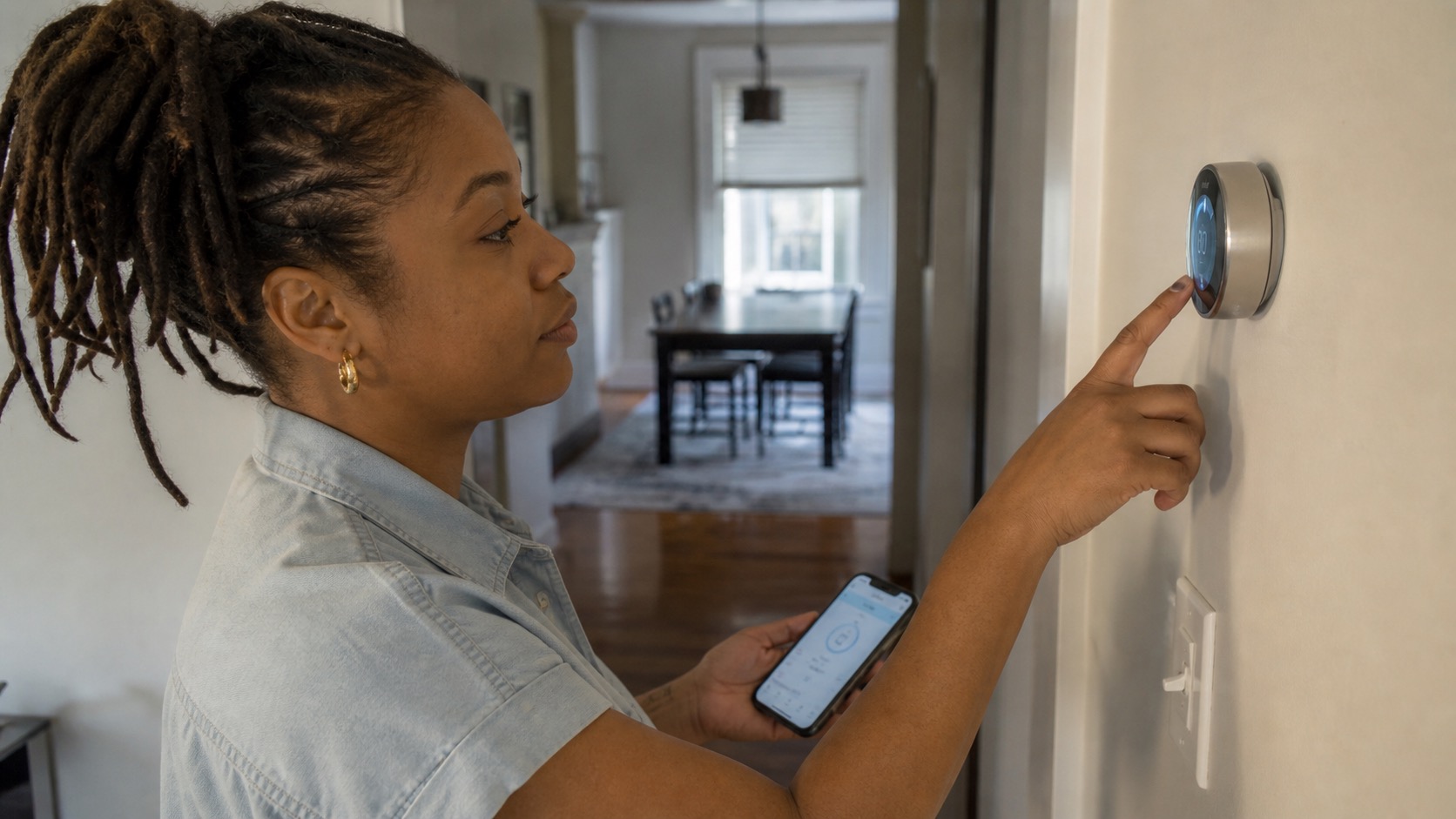
A thermostat problem can look like an HVAC problem. A blank screen, incorrect mode, Fan On setting, low battery, temporary equipment delay, smart-thermostat connection problem, or control issue can all make the heating or cooling system appear unresponsive.
Start by taking a clear photo of the thermostat with the screen and numbers visible. This guide stays with normal user controls and accessible batteries. Do not pull a supplied thermostat from the wall, expose wiring, enter installer configuration, or factory-reset a smart thermostat unless PMI James River specifically directs that step for the property.
Key Takeaways
- Check the current room temperature, mode, set temperature, and fan setting before changing anything else.
- A Wait or Waiting for Equipment message can be a normal short equipment-protection delay.
- A smart thermostat that is offline in an app may still be able to control the HVAC system locally.
- Do not remove a hardwired thermostat, change wiring, erase configuration, or take ownership of a supplied smart device.
In This Guide
- Start with the basic settings
- Blank or unresponsive thermostat
- HVAC does not respond to the setpoint
- Temperature seems wrong
- Fan runs continuously
- Smart thermostats
- What to send us if the problem continues
Start With the Basic Settings
Before assuming the thermostat or HVAC equipment has failed, check:
- Mode: Heat for heating, Cool for air conditioning.
- Set temperature: Above the current room temperature when asking for heat, below it when asking for cooling.
- Fan: Auto for ordinary troubleshooting. Fan On can create continuous airflow even when active heating or cooling is not running.
- Display messages: Photograph any error, warning, Wait, Delay, or equipment-status message.
If the thermostat says Wait, Waiting for Equipment, or shows a blinking heating or cooling indicator, avoid repeatedly changing the settings. Honeywell Home explains that many thermostats use a short delay, commonly up to about five minutes, to prevent the HVAC equipment from restarting too quickly.
Blank or Unresponsive Thermostat
If the thermostat screen is blank:
- Touch or wake the screen normally in case the display simply dims when idle.
- If the thermostat model uses ordinary user-replaceable batteries, install fresh batteries of the correct type.
- If you can safely access the electrical panel and there are no electrical warning signs, check whether the clearly labeled HVAC breaker is tripped. Reset it once only if needed.
If the screen remains blank, the thermostat repeatedly loses power, or the HVAC breaker trips again, stop troubleshooting and report the problem.
Do not remove a hardwired thermostat from its wall plate to inspect wires or test electrical voltage.
HVAC Does Not Respond to the Setpoint
If the display works but the HVAC system does not respond:
- confirm the correct Heat or Cool mode;
- confirm the setpoint is actually asking the system to run;
- set Fan to Auto;
- wait through any displayed equipment-protection delay;
- check the accessible filter and obvious vent obstructions; and
- record any error or help code exactly as displayed.
If the thermostat appears to be correctly calling for heating but the home remains cold, move to the heating troubleshooting guide. If it is calling for cooling but the home remains warm, use the AC troubleshooting guide.
The Thermostat Temperature Seems Wrong
A thermostat can sometimes be temporarily influenced by its immediate surroundings. Check for an obvious nearby condition such as direct sunlight, an open exterior door, or a portable heat source immediately beside the thermostat.
For a smart thermostat with supplied room sensors, also check the normal user-facing screen or app to see whether another sensor is controlling the current comfort setting.
Do not enter installer calibration settings or alter equipment configuration. If the thermostat reading remains clearly inconsistent with the room or the HVAC behaves incorrectly because of it, submit a maintenance request.
The Fan Runs Continuously
Check the fan setting first. Fan On generally tells the blower to run continuously. Auto normally lets the HVAC controls run the fan as needed with heating and cooling cycles.
Some smart thermostats also have circulation schedules or other user-facing fan features. Review the ordinary fan status before assuming the HVAC system will not shut off.
If the fan continues running unexpectedly with Fan Auto selected, or the system ignores normal thermostat commands, report the problem.
Smart Thermostats: Use the Brand Support Without Reconfiguring the Property
Smart thermostats vary by model, but the safe resident boundary is consistent: use ordinary controls, check app or Wi-Fi status, read error codes, use accessible batteries where the model provides them, and follow model-specific manufacturer help that does not require wiring or configuration changes.
Google Nest
If a Nest thermostat shows as offline in the app, Google notes that some models can still control the home locally from the thermostat itself. Check the thermostat display, power or battery status available through normal menus, and any help code. Use Google Nest's current offline-thermostat support for the model-specific path.
Honeywell Home / Resideo
Check the displayed mode, room temperature, setpoint, battery status when applicable, and any Waiting for Equipment message. Honeywell Home's current support explains that an ordinary equipment-protection delay can last up to about five minutes. Use Honeywell Home's thermostat delay guidance for that symptom.
Amazon Smart Thermostat
Amazon provides model-specific help for blank displays, incorrect temperature readings, heating or cooling that will not switch on, heat-pump temperature issues, and error codes. Use the Amazon Smart Thermostat support hub for the applicable symptom.
Do not choose a factory reset simply because it appears in the support menu. A reset can change or erase configuration that belongs with the property.
ecobee
Use the normal thermostat screen and app to review temperature, operating mode, fan status, schedule, sensor selection, and connectivity. If the problem requires deeper device-specific help, use ecobee's support resources.
Do not remove an ecobee from the wall, inspect its wiring, install a Power Extender Kit, or change installer configuration as resident troubleshooting.
If the thermostat belongs to another account
If a supplied smart thermostat appears assigned to a prior user, requires an administrator credential you do not have, or will only proceed by erasing or transferring ownership, stop and report the access problem to PMI James River.
What to Send Us if the Problem Continues
If the safe thermostat checks do not solve the problem, submit a maintenance request through Rentvine. Include:
- a clear photo of the thermostat screen;
- the thermostat brand and model if plainly visible;
- the current room temperature, mode, and set temperature;
- the fan setting;
- the exact error or help code;
- whether the physical thermostat works even if the app does not;
- whether fresh resident-serviceable batteries changed anything; and
- whether the HVAC equipment responds at all.
Frequently Asked Questions
How long should I wait when the thermostat says Wait or Waiting for Equipment?
A short delay can be normal. Honeywell Home documents compressor-protection delays of up to about five minutes on many models. Leave the settings alone while the delay runs. If it persists or the equipment still does not respond afterward, report the symptom.
If my smart thermostat is offline, does that mean the HVAC is broken?
Not necessarily. An app or Wi-Fi problem can exist while the thermostat still controls the HVAC locally. Check whether the physical thermostat itself responds and whether the heating or cooling equipment operates.
Should I factory-reset a supplied smart thermostat?
No, not as a routine troubleshooting step. Factory resets, ownership transfers, administrator changes, and device removal can erase or alter property configuration. Report the problem if normal user controls and manufacturer-supported non-destructive checks do not resolve it.
Can I take the thermostat off the wall to inspect the wiring?
No. Resident troubleshooting stops before exposed thermostat wiring or installer configuration. Submit a maintenance request if the problem appears to require wiring or internal control diagnosis.
Continue Through the Heating & Cooling Guides
If the thermostat is working but cooling is not, use the AC troubleshooting guide. If heating is not working, use the heating guide. For weak or uneven airflow, use the airflow and filter guide.
You can also return to the PMI James River troubleshooting library or the broader Resident Maintenance hub.
Published: September 2, 2026